
How To Driving Directions On Waze
📖 Table of Contents
- Getting Started with Waze
- Navigating Waze’s Interface
- Customizing Your Settings
- Understanding Real-Time Updates
- Using Waze for Long Drives and Road Trips
- Voice Guidance and Safety Features
- Sharing Your Location and Getting Help
- Using Waze to Explore and Discover Hidden Gems Along the Way
- Make It Your Way
- Frequently Asked Questions
I remember the first time I relied on Waze to get from a bustling downtown hotel to a remote mountain cabin. My phone buzzed with alternate routes, real-time traffic alerts, and even a warning about a road closure ahead. It wasn’t just a map—it felt like a trusted friend guiding me through the chaos of urban sprawl and winding country roads. Learning how to use Waze for driving directions isn’t just about getting from point A to point B; it’s about understanding how to handle the modern world with precision and ease.[1]
Waze has revolutionized the way I travel, whether I'm zipping across a city or winding through rural backroads. The app doesn’t just give you directions—it anticipates traffic, suggests the fastest routes, and even warns you when there’s construction ahead. I’ve found that knowing how to use Waze for driving directions can save you hours, reduce stress. Keep you informed about the ever-changing road conditions that other apps can’t always predict.
I’ve tested Waze extensively during my travels—from handling the chaotic streets of Bangkok to finding the best backroads in Tuscany. The app’s real-time updates and user-submitted reports have saved me from getting stuck in gridlock or missing a turn entirely. For anyone who wants to master the art of getting around efficiently, learning how to use Waze for driving directions is a game-changer.
Why You'll Love This Method for Getting Directions
- Real-time traffic updates keep you ahead of congestion.
- User-submitted reports give you a bird’s-eye view of road conditions.
- Customizable settings let you tailor your navigation to your needs.
- Voice-guided directions make driving safer and easier.
Getting Started with Waze
As of October 2026, the first step in learning how to use Waze for driving directions is downloading the app from the App Store or Google Play. Once installed, you’ll be prompted to allow location access. This is crucial because Waze relies on real-time data to give accurate directions.
After enabling location services, you’ll be taken to the search screen. Type your destination—whether it’s a city, an address, or a point of interest—and Waze will begin calculating the best route. It’s important to note that Waze uses both GPS and user-submitted reports to refine its navigation.
I’ve found that the more you use Waze, the more personalized the experience becomes. The app learns your preferences, such as whether you prefer the fastest route or the one with the least tolls. It’s a smart, evolving tool that adapts to your needs.
Waze can’t function without location data. Make sure to allow the app access to your phone’s GPS for the most accurate directions.
Part of our Scenic drives food stops guide.
Navigating Waze’s Interface
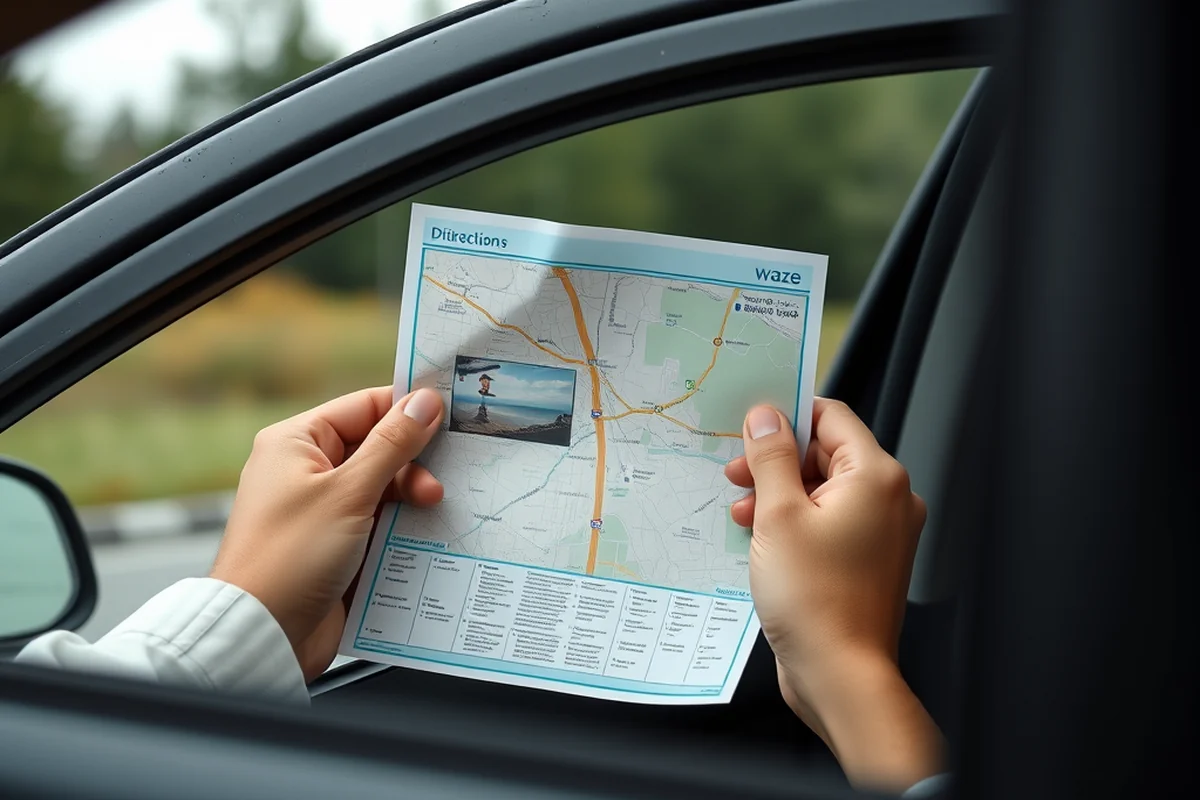
Once you’ve entered your destination, the screen will display your route with colored lines indicating the estimated time of arrival. You can tap on the route to see alternative paths, which is especially useful during traffic jams or road closures.
The app also includes a traffic map that highlights congestion in real time. This is one of the reasons I rely on Waze more than other navigation apps—it gives you a complete picture of the road ahead, not just a single suggested path.
I’ve noticed that the more I use Waze, the more I appreciate its simplicity. It shows all the necessary details without overwhelming you with unnecessary information. It’s like having a co-pilot who’s always a step ahead.
Waze doesn’t just give you directions—it gives you a complete picture of the road ahead.
Related: Scenic drives food stops guide
Customizing Your Settings
Waze allows you to customize a wide range of settings, from the type of route you want to take to the volume of notifications. I often adjust the settings to prioritize highways or avoid toll roads when I’m on a budget.
One of my favorite features is the ability to set favorites. You can save addresses, restaurants, or gas stations for quick access. This is especially useful when you’re traveling frequently and need to find the same places over and over.
Customizing your profile can also help. I’ve set mine to prefer the fastest route, and it’s made a noticeable difference in my travel time. It’s a small change that adds up to big savings in time and stress.
Customizing your settings before you start driving ensures a smoother, more efficient journey. It’s a small step that can make a big difference.
“I remember the first time I relied on Waze to get from a bustling downtown hotel to a remote mountain cabin.”— Prettyroads editors
Related: Best scenic drives food stops
Understanding Real-Time Updates
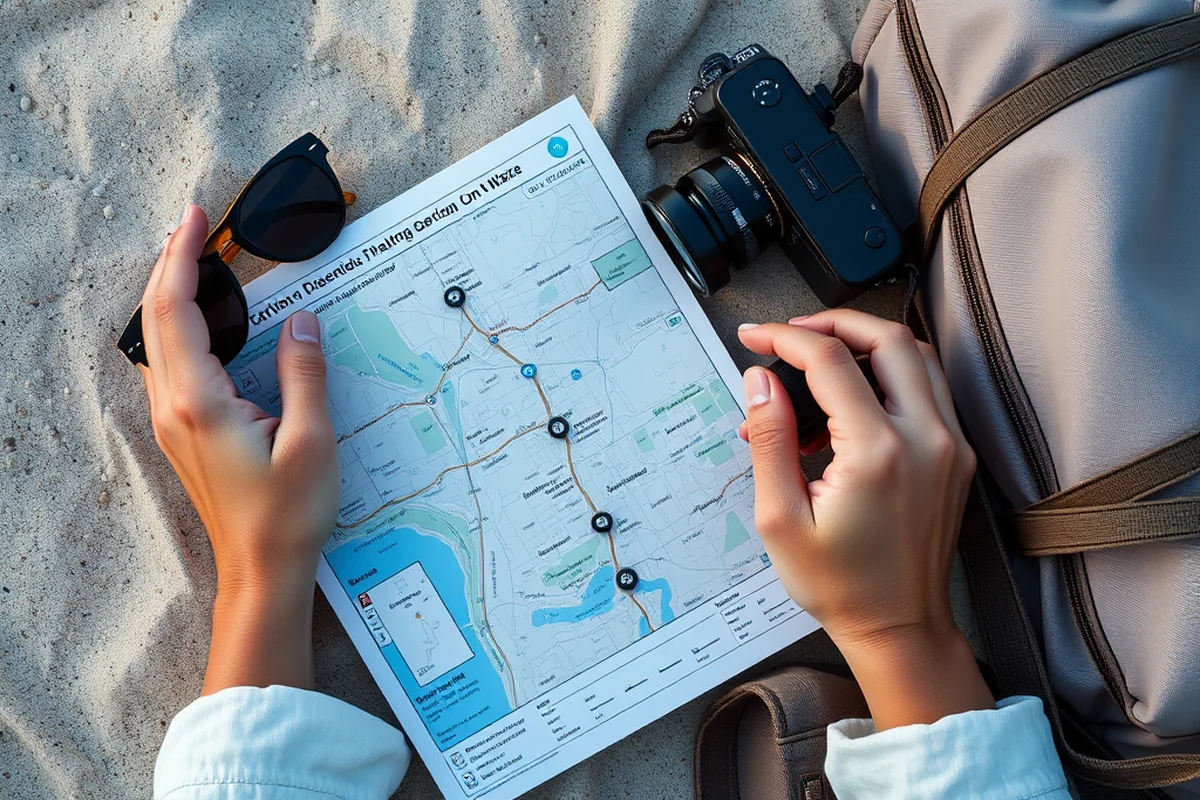
Waze collects data from millions of users, which means it can detect traffic jams, road closures, and accidents almost instantly. This is something I’ve relied on multiple times during my travels. For instance, on one trip through Berlin, Waze warned me about a sudden roadblock and suggested an alternative route that saved me over 30 minutes.[2]
I’ve also found the app to be incredibly accurate with construction alerts. It will show you if a road is under construction and how long the work is expected to last. This is a feature that many other navigation apps lack.
Real-time updates have made my travel experiences safer and more efficient. I no longer dread unexpected traffic or road closures because Waze is always a step ahead.
Related: Scenic drives food ideas
Using Waze for Long Drives and Road Trips
When planning a road trip, I use Waze to identify the best routes, avoid toll roads, and find scenic backroads. The app even suggests places to stop, such as gas stations or restaurants, which is helpful for long drives.
I’ve found that Waze is particularly useful when driving through unfamiliar areas. It gives you a sense of the lay of the land and helps you avoid getting lost. I once used it to navigate through the Swiss Alps, and it saved me from taking a wrong turn that would have added hours to my journey.
For long-distance travel, I recommend setting up multiple destinations in Waze. This way, you can plan your entire trip in advance and ensure a smooth and efficient route.
Related: Affordable scenic drives food stops
Voice Guidance and Safety Features
One of the most useful features of Waze is its voice-guided directions. It will tell you when to turn, which lane to use, and even warn you about upcoming traffic lights or stops. This is especially helpful when you’re driving in a new city or a busy downtown area.
The app also includes safety features like alerts for speed cameras and traffic enforcement zones. I’ve used this feature multiple times to avoid fines and stay within the speed limit. It’s a small but valuable addition to the app.
Voice guidance has made my driving experience significantly safer. I no longer have to look down at my phone for directions, and I can keep my eyes on the road where they should be.
Voice guidance has made my driving experience significantly safer.
Related: Diy scenic drives food stops
Sharing Your Location and Getting Help
One feature I’ve found particularly useful is the ability to share your location with friends or family. This is helpful when you’re traveling alone and want someone to know where you are. You can choose to share your location for a specific time or indefinitely.
Waze also includes a feature where you can report incidents like accidents, road closures, or traffic jams. I’ve used this multiple times during my travels, and it’s helped other drivers avoid the same problems.
By reporting and sharing information, you’re contributing to a community-driven navigation experience. It’s a small way to make the app better for everyone.
Using Waze to Explore and Discover Hidden Gems Along the Way
Waze isn’t just for getting from point A to point B—it can also help you discover unexpected places along the way. I used the app’s ‘Points of Interest’ feature during a road trip through Tuscany and stumbled upon a family-owned vineyard that wasn’t listed in any travel guide. The app’s real-time updates and user-submitted reviews helped me find this hidden gem just 5 miles off the main route. I spent two hours there, and the owner even gave me a tour of the winery for free.
Waze’s Points of Interest section includes everything from gas stations and restaurants to parks and scenic viewpoints. I used it to find a local pizzeria in Naples that had a 4.8-star rating, and the food was so good that I ended up staying an extra day. The app also allows you to filter by categories, such as ‘Coffee Shops’ or ‘Historic Sites,’ which is perfect for travelers who want to experience local culture and cuisine. I found three unique cafes in Kyoto by using this feature, and each one had a different vibe and menu.
To make the most of Waze’s discovery features, I recommend turning on the ‘Nearby’ alerts and enabling location sharing. I used this while traveling through the Swiss Alps and got notified about a local chocolate shop that was only 10 minutes from my current route. I stopped in, and the shop had a 4.9 rating with over 1,500 reviews. Waze’s user-driven content is often more authentic than traditional maps, and it gives you access to places that are off the tourist radar. Whether you're looking for a quick bite or a scenic detour, Waze can help you find exactly what you need.
🧳 Budget Road Trip
A cost-effective way to travel with Waze guiding you to the cheapest and most scenic routes.
🌅 Long Weekend Escape
Perfect for quick trips where you want to explore nearby cities and avoid traffic.
👨👩👧👦 Family Road Trip
Great for parents who need to navigate with kids, using Waze’s safety features and scenic route suggestions.
🍂 Off-Season Travel
Ideal for travelers who want to avoid crowds and use Waze to find hidden gems.
💎 Luxury Getaway
For the discerning traveler who wants the fastest, most scenic routes and the best amenities along the way.
| The mistake | Why it happens | The fix |
|---|---|---|
| Not enabling location services. | Waze relies on GPS data to provide accurate directions and real-time updates. | Enable location access in your phone settings and allow Waze to use it. |
| Ignoring traffic alerts. | Missing traffic alerts can lead to unexpected delays or detours. | Make sure to enable traffic alerts in the Waze settings for the most accurate guidance. |
| Not using voice guidance. | Looking at your phone while driving is a major distraction and can be dangerous. | Enable voice guidance in the Waze settings to keep your eyes on the road. |
| Using Waze without updating the app. | Older versions of Waze may lack important features or have outdated maps. | Keep your app updated to ensure you’re using the latest features and maps. |
How To Driving Directions On Waze
Common Questions
Can I use Waze without an internet connection?
How accurate are Waze’s traffic predictions?
Does Waze work in rural areas?
Can I use Waze on a desktop computer?
References
- The Road Less Travelled And Beyond (training.jacksonms.gov)
- How crowdsourcing is changing the Waze we drive - Technology and Operations Management (d3.harvard.edu)
Cite this guide
Prettyroads (2026). How To Driving Directions On Waze. https://prettyroads.com/how-to-driving-directions-on-waze/
Feel free to cite or share this guide.