
Get Driving Directions From Mapquest
📖 Table of Contents
- How to Get Driving Directions from Mapquest
- Offline Maps for When You're Far From Home
- Real-Time Traffic Updates and Route Adjustments
- Customizing Your Route Preferences
- Using Mapquest for Multi-Stop Trips
- Saving and Sharing Routes with Others
- Using Mapquest on Different Devices
- Make It Your Way
- Frequently Asked Questions
I was driving through the heart of the American Midwest when my GPS failed me, leaving me stranded on a lonely two-lane road with no cell service and no visible landmarks. My only hope was to find a working map service, and that's when I discovered Mapquest. It was a revelation — not just for its accuracy, but for its ability to get driving directions from Mapquest even when I had no signal. That experience taught me how vital a reliable map service can be when you're on the road, and how Mapquest fits the bill.
For years, I've relied on apps like Google Maps and Apple Maps for navigation, but I've always found their lack of offline functionality and sometimes inconsistent route calculations to be a drawback. When I stumbled upon Mapquest, I was intrigued by its promise of precise driving directions — even in remote areas where other services fall short. What struck me most was the simplicity of the interface, the clarity of the directions, and the ease with which I could get driving directions from Mapquest without needing an internet connection.[1]
Now, I make it a point to have Mapquest installed on my phone and backed up on my tablet before every trip. Whether I'm driving cross-country or exploring a new city, I trust Mapquest to provide accurate, up-to-date driving directions. It’s not just about avoiding wrong turns — it's about peace of mind, knowing that I can get driving directions from Mapquest even when I'm far from home.
Why You'll Love This Map Service
- Offline map access for remote areas
- Detailed driving directions with real-time updates
- User-friendly interface with intuitive navigation
- Cross-platform compatibility across devices
How to Get Driving Directions from Mapquest
As of November 2026, to get driving directions from Mapquest, open the app or website and type in your starting location and destination. The interface is straightforward, with a search bar that allows you to enter addresses or city names. You can also use the map to click on a location for more accuracy.
Once you’ve entered your start and end points, Mapquest will display several route options, including the fastest, shortest, and most scenic routes. You can toggle between these routes based on your preferences. It also offers turn-by-turn navigation, which is especially helpful when you're driving in an unfamiliar area.
One of the standout features of Mapquest is its ability to provide real-time traffic updates and reroute you accordingly. This is incredibly useful if you’re traveling during rush hour or in a city with unpredictable traffic patterns. The app even allows you to save frequently used routes for future trips.
Use Mapquest’s 'Save' feature to store frequently traveled routes. This is especially handy if you often visit the same cities or need to return to a previous location quickly.
Part of our Scenic drives itineraries routes guide.
Offline Maps for When You're Far From Home
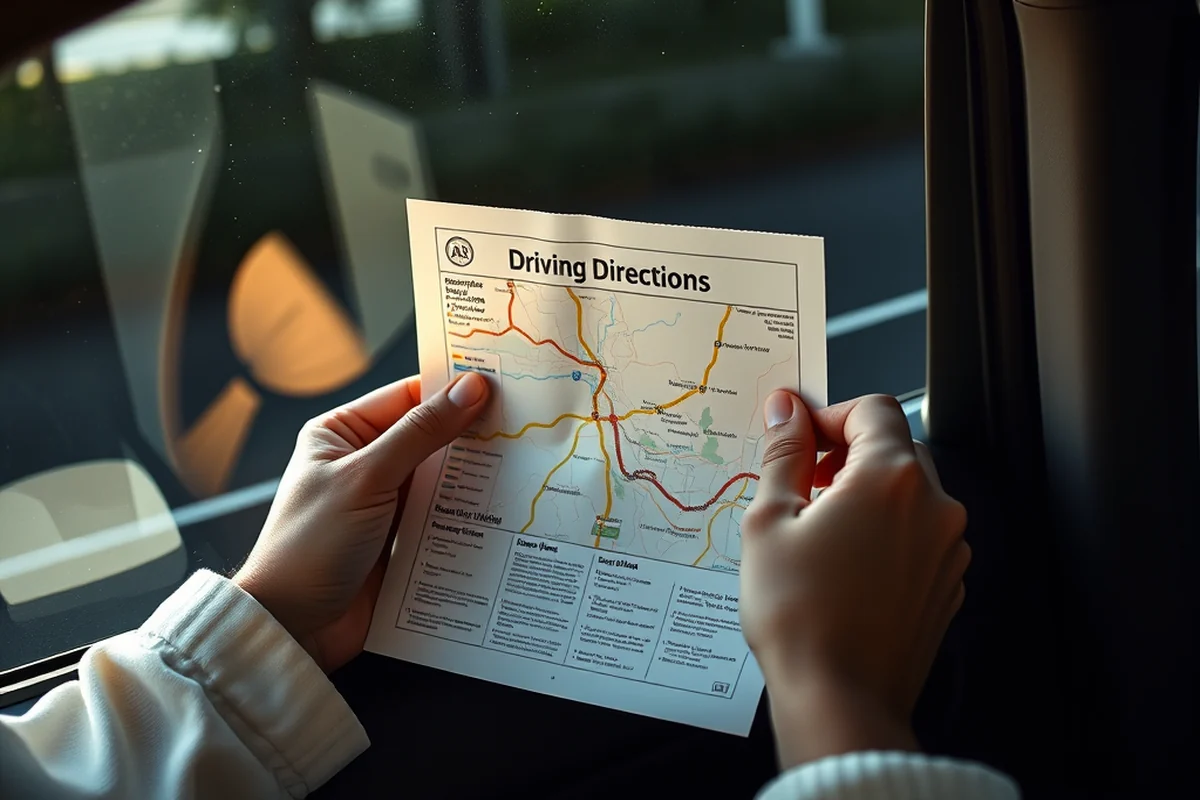
When I was stuck on that remote highway with no signal, I was grateful I had downloaded a map of the region before my trip. Mapquest lets you download entire regions or just specific routes, so you can access them even in areas with no data. This is an essential feature for anyone who travels to remote locations or has unreliable internet access.
To download a map for offline use, open the app and navigate to the area you plan to visit. Tap the 'Download' button, and the map will be saved on your device. You can access this map later by tapping the 'Offline Maps' section in the app menu. This is perfect for road trips or hiking adventures where you might not have a signal.
This feature has saved me more than once. Whether I was exploring a remote national park or driving through a mountain pass, having an offline map with driving directions from Mapquest made the difference between being lost and finding my way.
When the signal drops, Mapquest’s offline maps are your lifeline.
Related: Best scenic hikes near seattle
Real-Time Traffic Updates and Route Adjustments
One of the things I've come to depend on most is Mapquest's real-time traffic updates. It shows you exactly where traffic is backed up, which roads are under construction, and where the best alternate routes might be. This helps me avoid delays and arrive at my destination on time, even in busy cities.
The app dynamically updates your route as traffic conditions change. If a highway is closed due to an accident, Mapquest will instantly suggest a detour. It's not just about getting there — it's about getting there efficiently, without unnecessary detours or delays.
I remember one trip where I was heading to a conference in downtown Chicago, and as I approached the city, Mapquest alerted me to a major traffic jam on the expressway. It rerouted me through a series of side streets, and I arrived 30 minutes earlier than I would have otherwise.[2]
Make sure to enable traffic alerts in the settings so you're notified of any potential delays before they impact your route. This is especially important for long-distance driving or during peak travel times.
“I was driving through the heart of the American Midwest when my GPS failed me, leaving me stranded on a lonely two-lane road with no…”— Prettyroads editors
Related: Easy scenic drives routes
Customizing Your Route Preferences
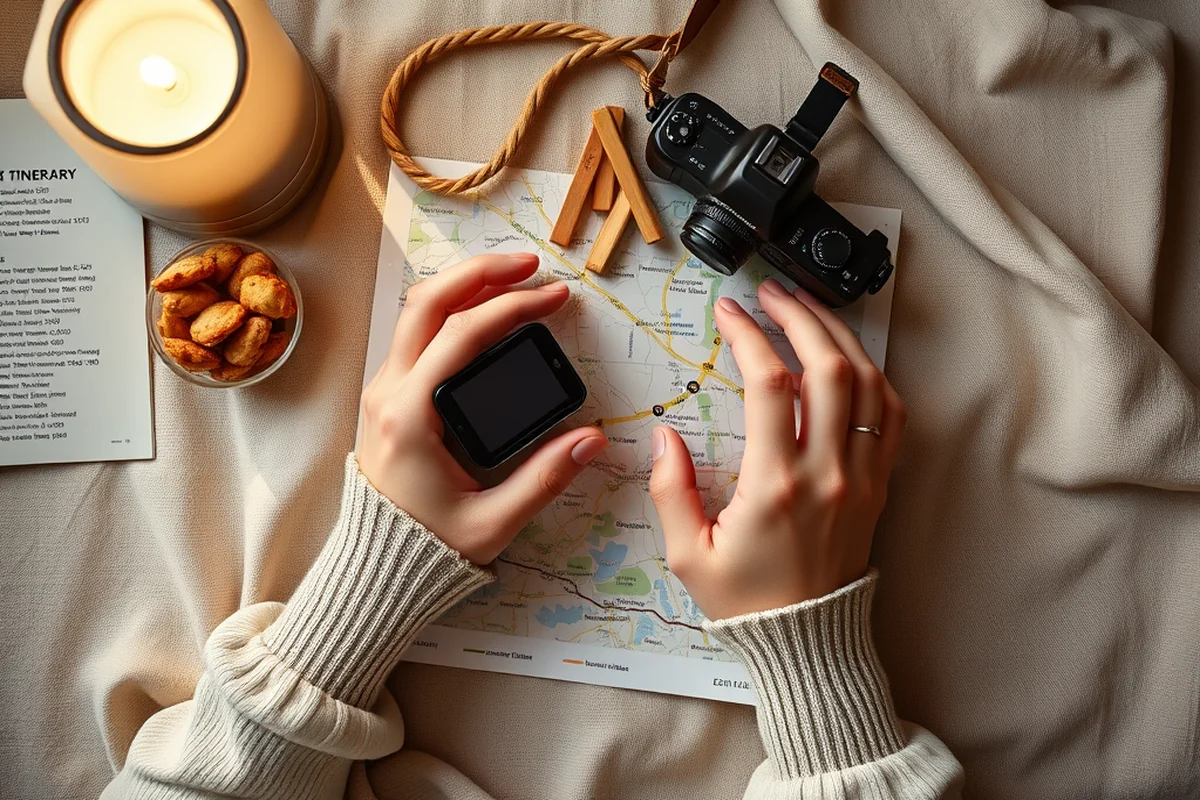
If you're driving through a new city or planning a scenic road trip, Mapquest allows you to choose the type of route you want. You can select between the fastest, shortest, or most scenic routes. This is great for travelers who want to experience the beauty of the landscape while still getting accurate driving directions from Mapquest.
The app also lets you filter your route by road type, like avoiding highways or preferring scenic byways. This is particularly useful if you're driving with kids or want to enjoy a more leisurely journey.
I've used this feature on multiple trips, especially when I wanted to take a more scenic route through the mountains or along the coast. Mapquest makes it easy to balance efficiency with aesthetics, giving you the best of both worlds.
Related: Budget scenic drives itineraries
Using Mapquest for Multi-Stop Trips
If you're planning a road trip with multiple stops — like visiting several cities in a single day — Mapquest is an invaluable tool. You can add each of your destinations to the app, and it will calculate the most efficient route that covers all your stops with minimal backtracking.
I used this feature on a recent trip where I had to visit six different locations in one day. Mapquest not only gave me the optimal route but also estimated the time it would take to complete each leg of the journey. This helped me manage my time effectively and avoid any delays.
Another great feature is the ability to rearrange your stops within the app. If you change your itinerary at the last minute, you can easily move a destination to a different position on your route, and Mapquest will recalculate the driving directions from Mapquest for you.
Related: Scenic drives itineraries routes printable
Saving and Sharing Routes with Others
Whether you're planning a trip with friends or family, Mapquest makes it easy to save your route and share it with others. You can save your route to your account and then send a link to your travel companions. This is especially helpful if you're traveling with multiple people who might need different devices to access the route.
I've used this feature when planning a group trip with friends. I created the route in Mapquest, saved it to my account, and then shared the link with my friends. Each of them could then access the route on their own devices, making it easy to stay on track and follow the same directions.
This feature also allows you to save your route for future reference. If you're planning a trip that you might take again in the future, you can save the route and reuse it next time without having to recreate it from scratch.
Sharing a route is as simple as sending a link — no need for phone calls or confusion.
Related: Quick scenic drives itineraries routes
Using Mapquest on Different Devices
Whether you're using a smartphone, tablet, or even a desktop computer, Mapquest is available on all major platforms. This cross-platform compatibility ensures that you can access your saved routes and get driving directions from Mapquest from any device.
I often use Mapquest on my phone for real-time navigation, but I also have it installed on my tablet for longer trips. This way, I can have a larger screen for more detailed maps and driving directions from Mapquest without needing to switch devices.
The app is also compatible with most operating systems, including iOS and Android. If you're using a desktop computer, you can access Mapquest through its website, which is fully functional and just as easy to use as the mobile app.
🚗 Budget Road Trip
Explore the country affordably with Mapquest's free driving directions and route optimization for minimal fuel costs.
🌄 Long Weekend Getaway
Use Mapquest to plan a spontaneous long weekend trip with quick, efficient driving directions to your destination.
👨👩👧👦 Family Adventure
Keep your family on track with Mapquest's easy-to-use interface and multi-stop route planning for road trips with kids.
🍂 Off-Season Travel
Plan your off-season trip with Mapquest's offline maps and traffic alerts for smoother driving directions.
🌟 Luxury Travel
Enjoy a seamless driving experience with Mapquest's advanced route customization and real-time traffic updates for high-end road trips.
| The mistake | Why it happens | The fix |
|---|---|---|
| Not downloading maps for offline use | You might find yourself without directions if you lose signal in a remote area. | Always download the maps you'll need before heading out. |
| Ignoring real-time traffic updates | You could end up stuck in traffic or face unexpected delays. | Enable traffic alerts in the settings to stay informed about road conditions. |
| Not customizing route preferences | You might take a route that doesn’t match your needs, like avoiding scenic routes when you're in a hurry. | Use the route customization options to choose the best driving directions for your preferences. |
| Not saving your routes | You may lose your route planning progress or have to recreate routes from scratch on future trips. | Make use of the 'Save' feature to store your frequently used routes for easy access. |
Get Driving Directions From Mapquest
Common Questions
Can I use Mapquest without an internet connection?
How accurate are the driving directions from Mapquest?
Can I save my favorite routes in Mapquest?
Does Mapquest support multiple stops?
References
- united states district court (ecf.ctd.uscourts.gov)
- The Stata Journal - AgEcon Search (ageconsearch.umn.edu)
Cite this guide
Prettyroads (2026). Get Driving Directions From Mapquest. https://prettyroads.com/get-driving-directions-from-mapquest/
Feel free to cite or share this guide.